Prepare for severe weather
On this page
This guide sets Weather up before a storm and shows where to look while one is coming: your home place and the places of people you care about, the alerts in effect, the radar loop and the hurricane tracker.
#Set up your places first
- Select Weather, search for your ZIP code or city, and select Set as home on its page. The Weather overview then opens on it, and the radar centers on it.
- For the other places you care about, open each one and select Follow. The first time, select Enable cookies to turn on Saved preferences.
- Open My places in the row of Weather pages to see them side by side.
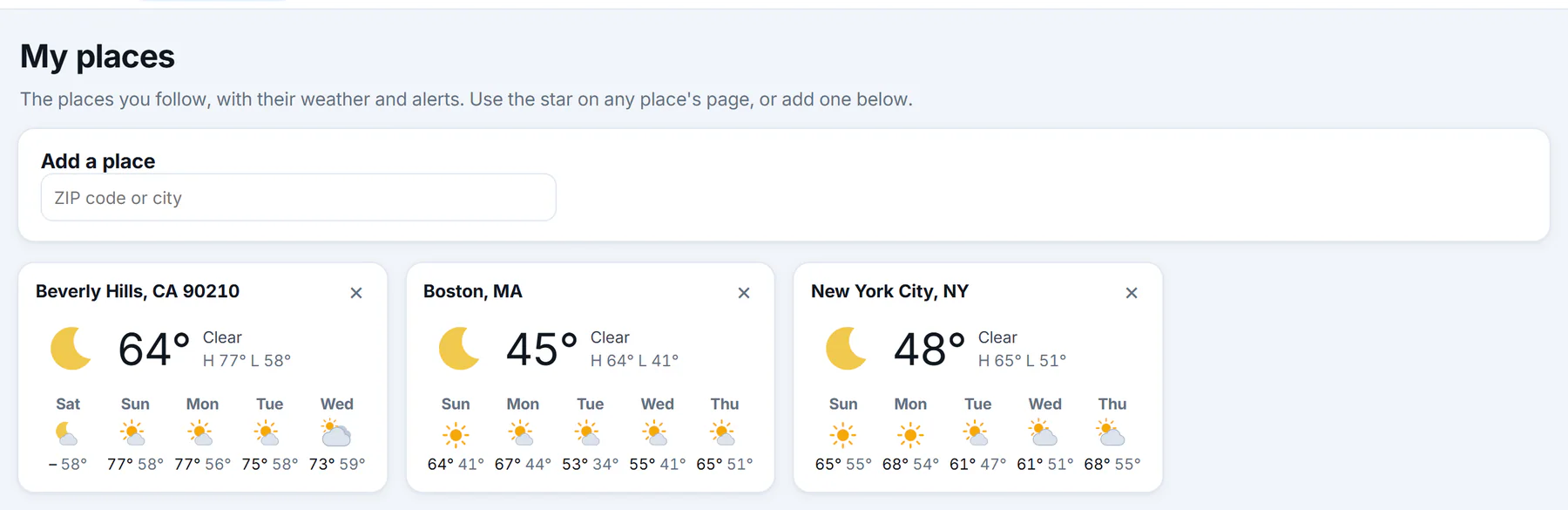
My places: each card shows the conditions now, the next days and any alert in effect.
- 1Add a place by ZIP code or name
- 2One followed place
- 3Stop following
- 4The next five days
You can follow up to 30 places. See Set a home place and Follow places.
#See which alerts are in effect
- On a place's page, colored bars under the tabs name each alert and when it ends; the Alerts tab shows them in full.
- On the Weather overview, Severe weather now counts the alerts in effect by kind and lists the states with the most.
- On the Alerts page, every alert in the country, most urgent first; the State menu narrows it to one state.
Open an alert to read its severity and urgency, how long it lasts, the office that issued it, and Details with What to do.
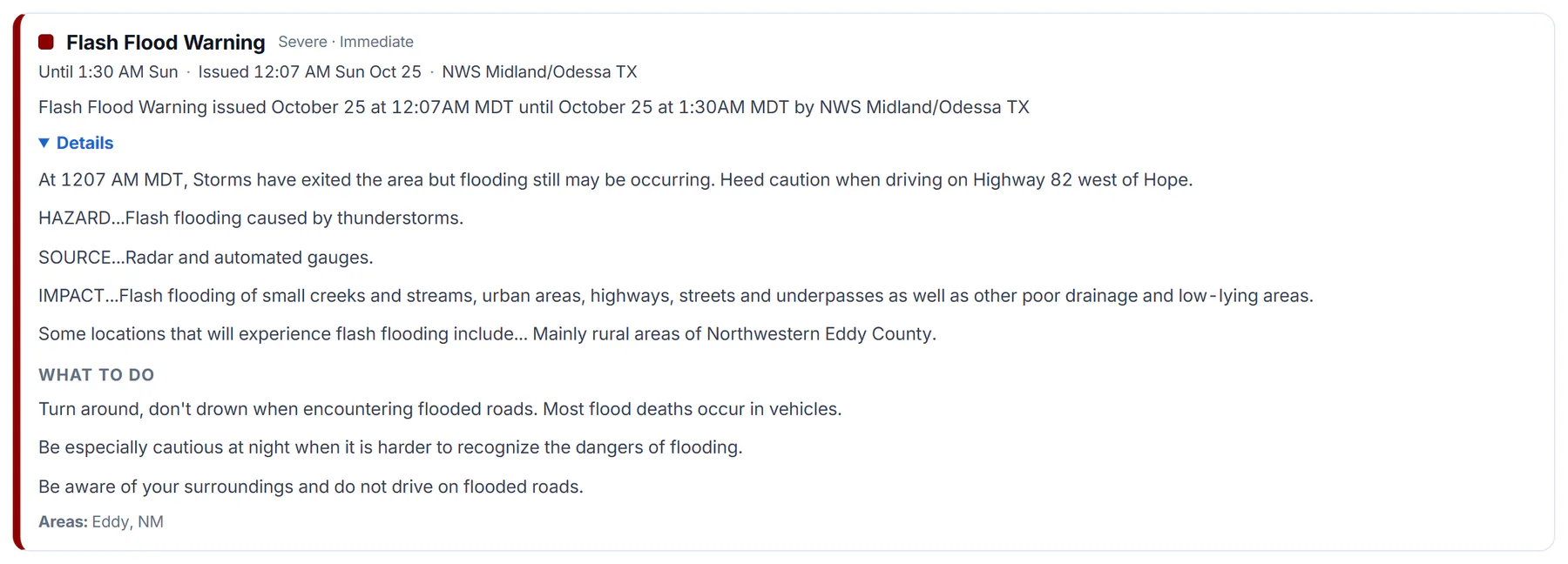
One alert in full, with its details open.
- 1The kind of alert, with its severity and urgency
- 2How long it lasts, when it was issued and by whom
- 3The full text and what to do
- 4The areas it covers
A Warning means the hazard is happening or about to; a Watch means conditions could produce it. Read each alert's own instructions rather than going by the name alone. An alert's color tells you which hazard it is, not how serious. See Weather alerts.
#Watch the radar
-
Select Radar in the row of Weather pages, or the Radar tab on a place's page.
-
Select play to loop the last two hours and see which way the rain is moving.
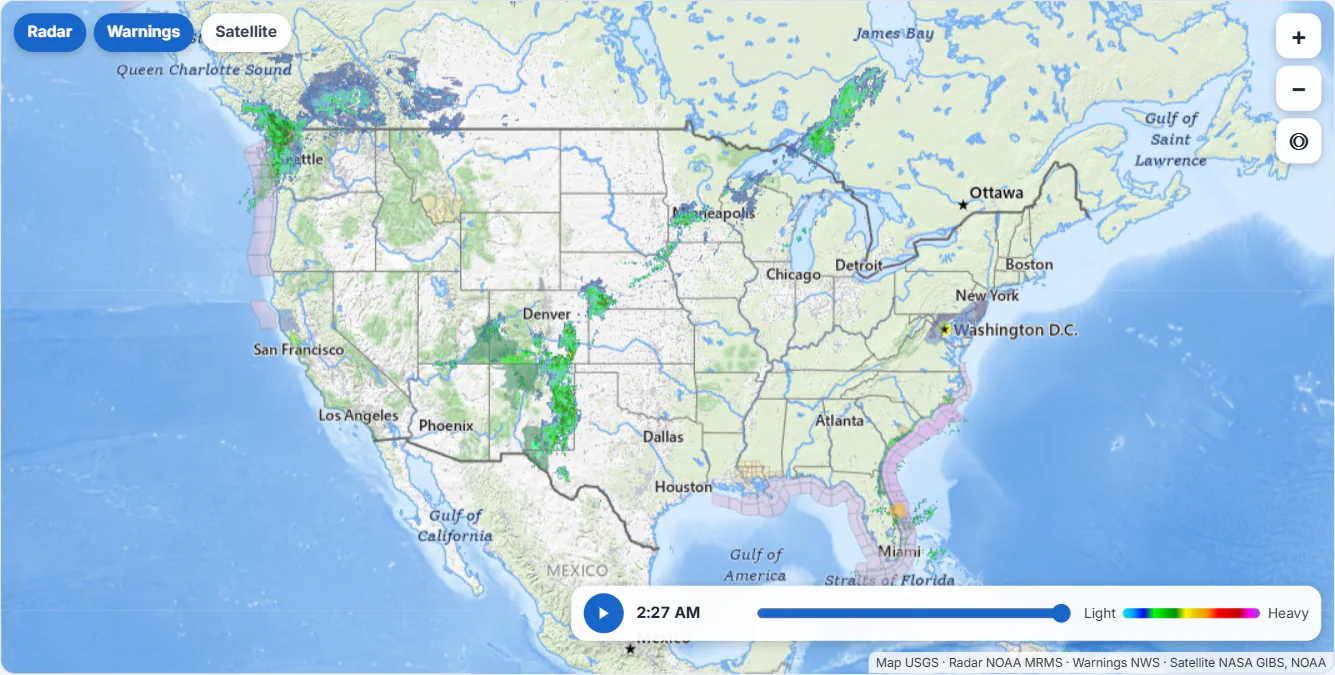
Layers at the top left, zoom at the top right, and the time bar along the bottom.
- 1Layers: radar, warnings, satellite
- 2Zoom in, zoom out, my location
- 3Play the last two hours
- 4Drag to a moment
- 5Light to heavy precipitation
-
Switch on Warnings to draw the areas under watches, warnings and advisories in their colors.
-
Switch to Satellite to see the clouds from space.
The radar shows what has already been detected, not a forecast. See Use the radar map.
#Track a hurricane
Select Hurricanes in the row of Weather pages. When a storm is active, the overview's Tropics box lists it too.
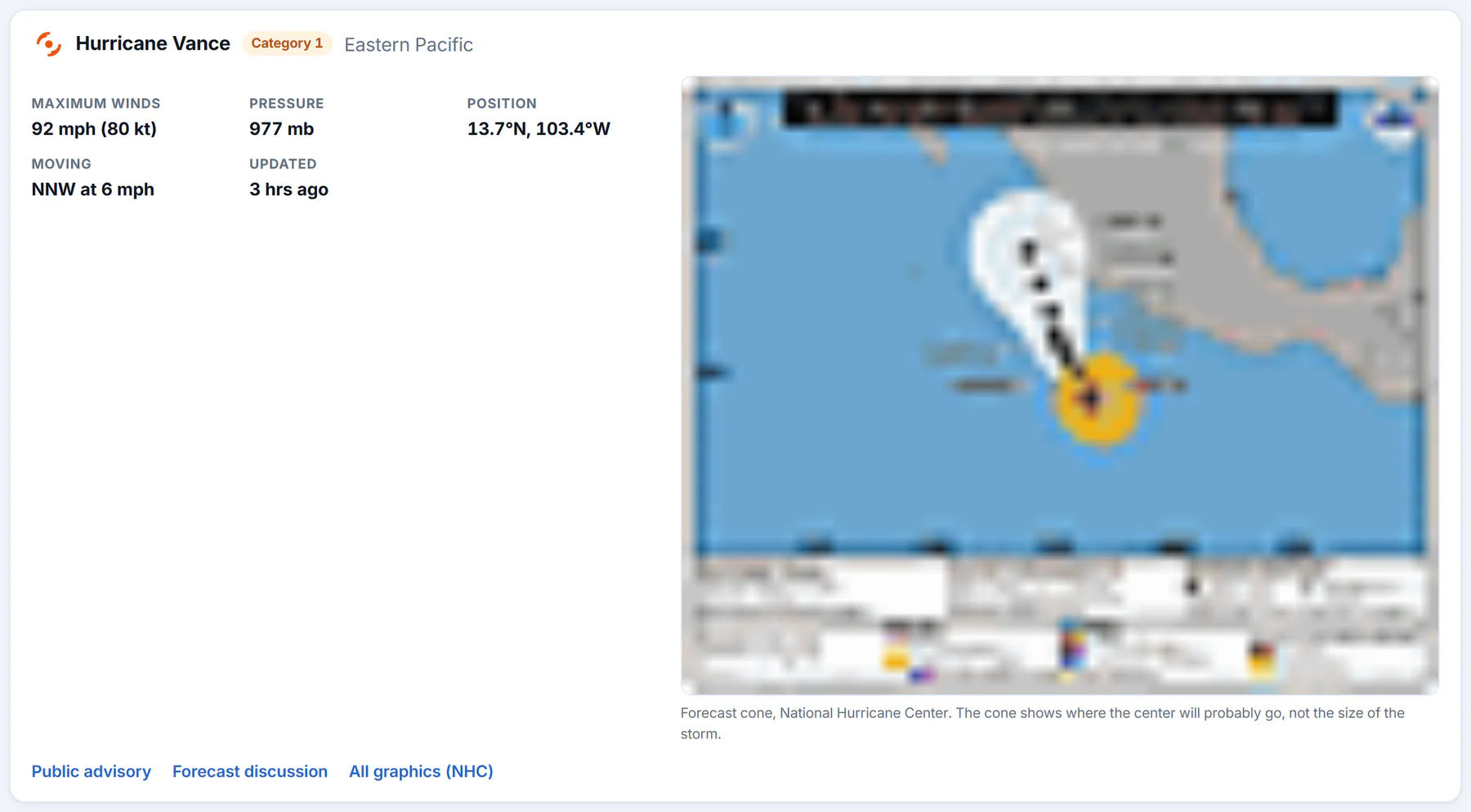
A storm's box: its category, figures, forecast cone and links to the National Hurricane Center.
- 1The storm's name and type
- 2Its category
- 3Winds, pressure, position and movement
- 4The forecast cone
- 5The National Hurricane Center's own pages
Each storm shows its category, maximum winds, pressure, position, movement and when the figures were issued. The forecast cone shows where the center of the storm will probably go, not how big it is: wind, rain and surge can reach well outside it. The Public advisory link opens the Center's own text. See Track hurricanes and tropical storms.
#Know the limits
- No alerts are sent to you. Weather shows alerts when you open a page. Use the official alerting services on your phone and your local officials.
- Alerts and radar cover the United States. Places elsewhere have forecasts and satellite pictures, but no alerts.
- Every figure has an age. Look for "Observed at", "forecast updated" and "Updated" notes. See Where the weather comes from and how fresh it is.
#Common questions
Why does my place show no alert when there is one nearby?
An alert covers named zones and counties. If yours is not among them, it is not shown for your place. Open the Alerts page for your state to see everything near you.
Can I see the alerts for my family's town?
Yes. Follow their town: its card on My places names any alert in effect, with a link to it.
Does Weather show storms outside the Atlantic and eastern Pacific?
The Hurricanes page follows the storms the National Hurricane Center tracks: the Atlantic and the eastern and central Pacific.